Free Menu QR Code: Encode an Existing Link or Build a Menu
Key Takeaway
Choose between the no-signup QR tool for an existing URL and a hosted Menujo menu. Check PNG, SVG, destination continuity and printing requirements.
Create a hosted menu first, or use a link you already have
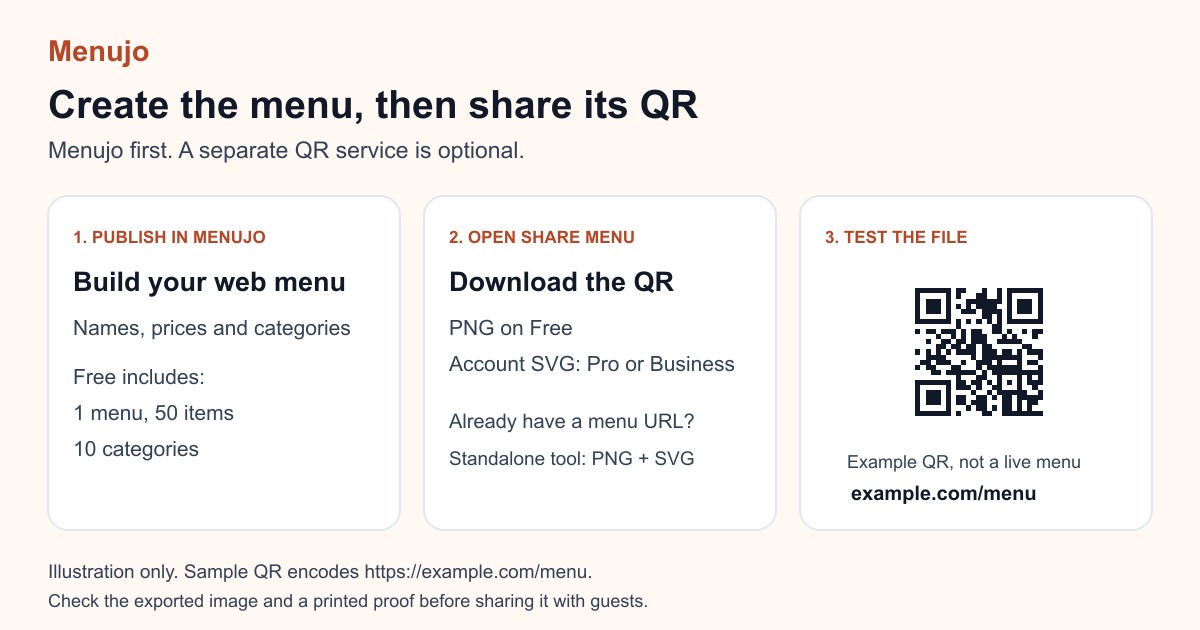
To create a QR code for a restaurant menu in Menujo, publish the menu and download its QR from Share menu. Start with the Menujo setup guide if you still need a web menu. Free includes one hosted menu, 50 items, 10 categories and a PNG QR download.
Already have a public menu URL? Use the free Menujo QR generator to encode it and download SVG or PNG without signing up. The standalone tool creates the QR file; it does not host or convert your menu. After saving any menu update, check the same public menu address before reusing the printed QR.
Which workflow do you need?
| Requirement | Existing menu URL + QR tool | Hosted Menujo menu |
|---|---|---|
| Menu content | Keep your existing website or file host | Enter categories, items and prices in the editor |
| Account | No signup for the QR tool | Menujo account required |
| QR file | SVG and PNG in the standalone tool | PNG on Free; account SVG on Pro and Business |
| Menu edits | Update at the existing destination | Save changes in Menujo behind the same URL |
| Analytics | Depends on the destination or redirect service | Menu views; features and history depend on plan |
Static QR does not mean static menu content
A static QR permanently encodes its text or URL. It has no built-in expiry timer. A hosted page or PDF at that URL can change without changing the code, provided the same destination still works.
If you move the destination, preserve a redirect when you control the old address or replace the printed code. A redirect service adds another dependency whose access and subscription terms need checking. No QR type guarantees that a closed host or deleted account will keep working.
See static and dynamic QR workflows and PDF versus mobile web menus.
Optional: use QRLynx for a separately managed PDF menu
For a menu you want to edit as categories, dishes and prices, use Menujo and its built-in menu QR. You do not need a second QR service for that workflow.
If the menu needs to remain a PDF and you want to replace the file behind a managed QR link, QRLynx's Restaurant Menu QR tool is an optional second route. Sign in to QRLynx, choose Restaurant Menu, upload the approved PDF and save the QR before downloading. The free QRLynx Starter plan accepts a PDF source up to 5 MB and provides clean PNG downloads while signed in. SVG artwork and A4 PDF QR-image exports require Starter+ or higher; the exported A4 PDF contains a raster QR image. Guest QRLynx downloads include a watermark.
A saved Restaurant Menu QR serves the uploaded PDF directly. Replace the PDF through the saved code, then check the actual document reached by the printed QR. The managed route depends on QRLynx hosting and redirects remaining available. For an existing web menu, use QRLynx's Website / Link type instead of uploading a PDF.
Read the QRLynx restaurant menu QR guide for destination, export and print checks. Menujo and QRLynx have separate accounts and plan conditions; QRLynx is not included in a Menujo plan.
Keep the print scannable
DENSO WAVE specifies a four-module blank margin around QR symbols. Physical size also depends on the encoded data, print quality, distance, light and camera. There is no universal two-centimeter minimum that guarantees success. Keep decorative elements outside the symbol and test the proof. See DENSO WAVE's sizing guidance.
The current Menujo tool supports dot and corner styles and SVG/PNG download. It does not offer a logo-upload control. If a code decodes but the page fails to load, follow the destination and scanning troubleshooting steps.
Understand the traffic numbers
A menu view is not a confirmed camera scan. Free provides seven days of basic Menujo analytics; Pro extends history to 60 days and Business to 90 days. Business includes source classification, including tagged QR links, but those links can also be shared. Read what the current reports mean.